How to Hide Preview Image Inside Post But Show on Home Page
How to Hide Preview Image Inside Post But Show on Home Page
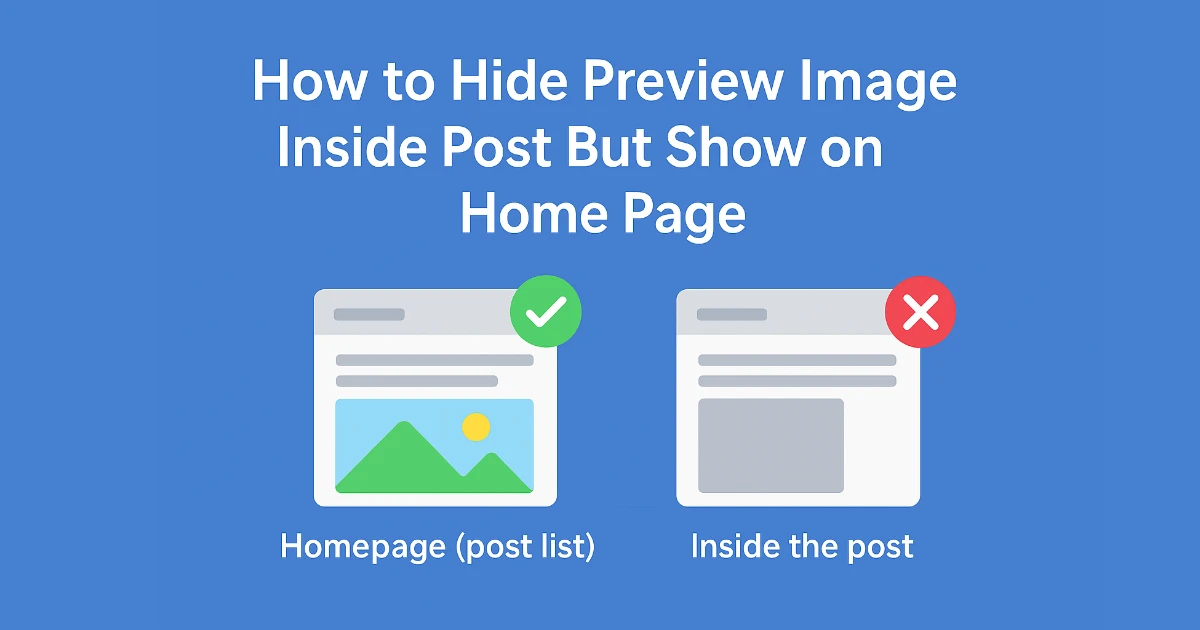
By default, Chirpy theme displays the preview (featured) image at:
- Home page (post list)
- Inside individual post
But in some cases, you may want:
- Show image on homepage (preview)
- Hide image inside the post
This guide explains how to do that with a simple conditional flag in Front Matter.
Step 1: Edit _layouts/post.html
If your repository lacks
_layouts/post.html, create it and copy the contents from the Chirpy repository.or Go to your theme folder and open:
/_layouts/post.html
Find the block where the image is rendered. Wrap it inside this condition:
1
{% if page.image.show_image_in_post != false %}
What you need to do is find this code section
1
2
3
4
5
6
7
        <div class="mt-3 mb-3">
          <img {{ src }} {{ class }} {{ alt }} w="1200" h="630" {{ lqip }}>
          {%- if page.image.alt -%}
            <figcaption class="text-center pt-2 pb-2">{{ page.image.alt }}</figcaption>
          {%- endif -%}
        </div>
      {% endif %}
and replace with this
1
2
3
4
5
6
7
8
9
10
      {% if page.image.show_image_in_post != false %}
        <div class="mt-3 mb-3">
          <img {{ src }} {{ class }} {{ alt }} w="1200" h="630" {{ lqip }}>
          {%- if page.image.alt -%}
            <figcaption class="text-center pt-2 pb-2">{{ page.image.alt }}</figcaption>
          {%- endif -%}
        </div>
      {% endif %}

      {% endif %}
This means:
- If
show_image_in_post: false→ Don’t show image inside post - Otherwise → Show normally
Step 2: Add Front Matter in Your Post
Inside any post where you don’t want the preview image visible in the post, add this line:
show_image_in_post: false
Example full Front Matter:
1
2
3
4
5
6
7
8
---
layout: post
title: "Sample Blog Post"
date: 2025-01-01
image:
  path: /assets/img/sample.jpg
  show_image_in_post: false
---
- Image still shows on homepage
- Image hidden inside the blog post
Result
| Location | Image Behavior |
|---|---|
| Home page post list | Visible |
| Individual post page | Hidden |
This post is licensed under CC BY 4.0 by the author.