How to Use LQIP (Base64) Images in Jekyll Chirpy Theme
Learn how to use lightweight LQIP (Base64) images to improve your Jekyll Chirpy site's loading performance.
Website performance plays a big role in both SEO and user experience. A faster site means visitors stay longer and search engines rank it higher.
One simple but powerful technique to speed up your site is using LQIP (Low Quality Image Placeholders).
This post will guide you through the process of creating and using Base64 LQIP images in your Jekyll Chirpy theme.
What is LQIP?
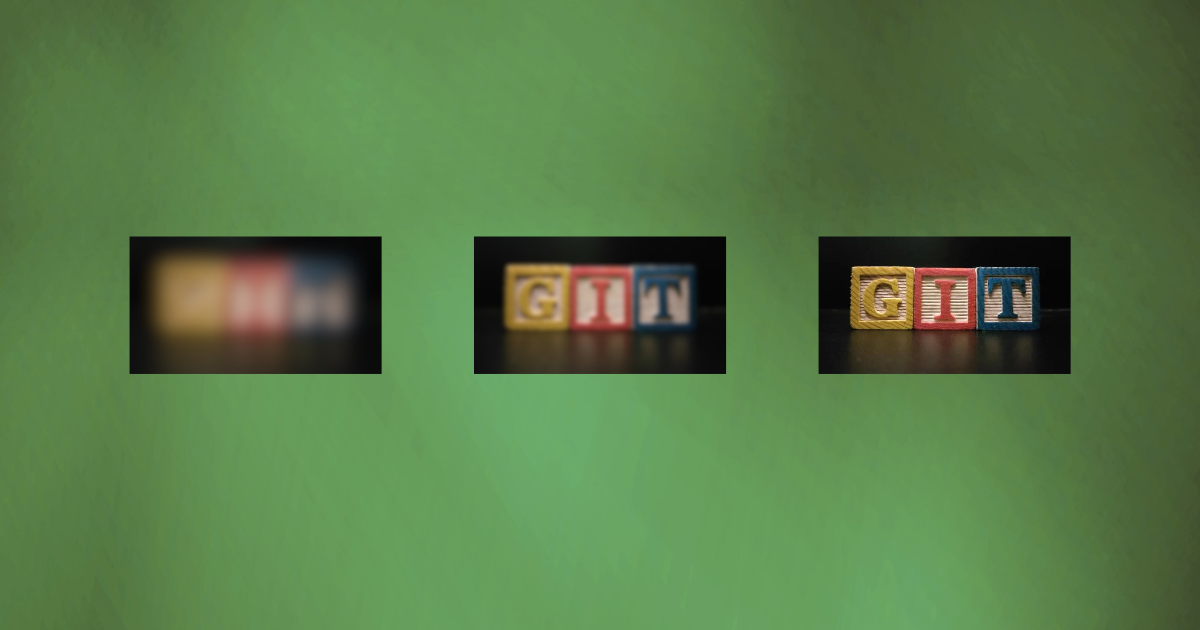
LQIP (Low Quality Image Placeholder) is a small, blurred, lightweight version of your original image.
It appears instantly when a page loads, and is replaced by the full image once it’s downloaded.
It helps in improving perceived performance and creating a smooth lazy loading effect.
Prepare Your Image
- Ensure Image Readiness:
- For the Chirpy theme, your image should have a resolution of
1200 x 630pixels. - This resolution ensures the images look great and maintain a consistent aspect ratio.
- For the Chirpy theme, your image should have a resolution of
- Aspect Ratio Requirement:
- The aspect ratio should meet
1.91:1. - If the aspect ratio does not meet this requirement, the image will be scaled and cropped.
- The aspect ratio should meet
- Using Canva for Image Preparation:
- Canva is an excellent tool for resizing and cropping images effectively.
- It provides a visual interface for precise control over cropping and composition.
- Steps to prepare your image in Canva:
- Create a new design with custom dimensions of 1200x630 pixels.
- Upload your image and place it within the design.
- Adjust the image to fit the frame, ensuring important elements are visible.
- Export the image as a high-quality PNG or JPG.
Steps to Create a Base64 LQIP Image
Here’s the complete process to convert your images into Base64 LQIP placeholders for Jekyll Chirpy:
Step 1: Compress or Convert Image to WebP
Before creating an LQIP, reduce the file size by converting or compressing your original image.
You can use any of these free online tools:
Example conversion process: Cloudinary PNG to WebP
- Upload your
.jpgor.pngfile. - Convert it to
.webpformat for better compression. - Download the
.webpimage.
Step 2: Resize Image to 20x20 Pixels
After compression, resize the image to around 20x20 pixels (small but visible enough for placeholders).
Use Image Resizer for quick resizing.
This tiny version will act as your LQIP preview.
Step 3: Convert Image to Base64
Now, convert your resized image to Base64 format using:
Steps:
- Upload the
20x20 pximage. - After processing image click </> button.
- Copy the
Base64 stringshown underFor use in <img> elements.
Example output:
1
data:image/webp;base64,UklGRiIAAABXRUJQVlA4IBYAAAAwAQCdASoBAAEALwA...
Step 4: Add Base64 LQIP in your page Front Matter
Open your Jekyll post Markdown file (e.g., _posts/2025-10-18-lqip-guide.md),
and paste the Base64 code in the image: field inside the front matter.
Example:
1
2
3
4
5
6
7
8
9
10
---
title: "My Blog Post with LQIP"
date: 2025-10-18 16:34:00 +0530
categories: [Web Development]
tags: [Jekyll, Chirpy, LQIP]
image:
  path: /assets/img/lqip-demo.webp
  lqip: data:image/webp;base64,UklGRkABAABXRUJQVlA4IDQBA...
description: "Using Base64 LQIP images in Jekyll Chirpy theme."
---
This will show the Base64 image as the thumbnail in post previews until the full-size image loads.
The
data:image/webp;base64,prefix is crucial. It tells the browser that this is a base64-encoded WebP image. This prefix matches the WebP format we used in the LQIP generation step. If you decide to use a different image format in the future, remember to adjust this prefix accordingly (e.g.,data:image/png;base64,for PNG ordata:image/jpeg;base64,for JPEG).
Implement and Test LQIP
To verify that the LQIP implementation is working correctly, follow these steps:
Build and Serve Your Jekyll Site to view your site.
- Navigate to the post where you added the LQIP.
- Inspect the image loading process. You should see the low-resolution placeholder image (LQIP) first, followed by the high-resolution image once it loads.
- If you don’t notice the LQIP, try clearing your browser cache or using incognito/private browsing mode.
- Use Developer Tools:
- Open your browser’s developer tools.
- Go to the
Networktab and refresh the page. - Look for the image requests in the network log. Verify that the base64-encoded placeholder image loads initially, followed by the full-resolution image.
- Check the
Imgcolumn in the Network tab to see the LQIP being used before the main image loads. - When you open the
data:imageentry, you should see a small, blurry version of your image. This is your Low-Quality Image Placeholder. If you see this, congratulations! Your LQIP is working correctly.
The Chirpy theme natively supports LQIP implementation. If you’re not seeing the LQIP effect, double-check your front matter syntax to ensure it matches the format shown in Step 4. If issues persist, verify that you’re using the latest version of the Chirpy theme and that no custom modifications are interfering with the LQIP functionality.
Tips for Best Results
Use .webp images whenever possible.
Keep LQIP images under 1KB in size.
Use descriptive filenames for SEO.
Test loading time using PageSpeed Insights.
Final Result
When done correctly, your Chirpy site will:
Load images smoothly.
Look visually polished even before full images appear.
Improve performance and user satisfaction.
Useful Tools Summary
Cloudinary Tool Hub Cloudinary
Creating new design Canva
Compress Images to 10 kb Cloudinary
Convert PNG/JPG to WebP Cloudinary
Resize Image to 20x20 px Image Resizer
Convert to Base64 Base64 Image Encoder
Feel free to use different tools; these links are not the only solution.
With this simple method, your Jekyll Chirpy site will not only look faster but also feel more professional. Try it out on one of your posts and notice the improvement!